> ## Documentation Index
> Fetch the complete documentation index at: https://docs.sourcemedium.com/docs/llms.txt
> Use this file to discover all available pages before exploring further.
# How to Self-Service Provision Your SourceMedium MTA Dashboard
> How to copy the MTA Looker Studio template and connect it to your warehouse data sources.
To access SourceMedium’s built-in multi-touch reporting, you’ll need to provision your dashboard. Dashboard provisioning is easy to do using SourceMedium’s [template](https://lookerstudio.google.com/s/kN_l7dBHU1k) and the Looker Studio copying feature, just follow the steps below.
The video below contains the same information as the guide, choose whatever format you prefer!
Make sure you’ve gotten confirmation from a SourceMedium team member via Slack or email that your MTA data has been modeled and is present in your warehouse.
Once you have confirmation your data is ready, navigate to the [latest SourceMedium MTA demo dashboard](https://lookerstudio.google.com/s/kN_l7dBHU1k). If you have any issues accessing the dashboard, reach out to a SourceMedium team member via Slack or email.
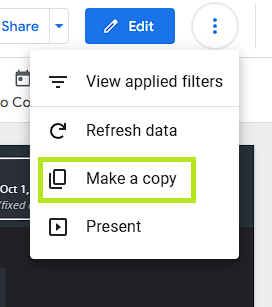
Once on the demo dashboard, use the 3 dots icon at the top right to bring up the menu and select **Make a copy**.
 You will then need to select new data sources from the drop down menus presented. The selection is simple: at each of the three drop down menus, select the **New Data Source** from your managed data warehouse which has the same name as the **Original Data Source** on the left.
Data sources from your warehouse will be listed under the *Available data sources* section, not the *Added data sources* section.
You will then need to select new data sources from the drop down menus presented. The selection is simple: at each of the three drop down menus, select the **New Data Source** from your managed data warehouse which has the same name as the **Original Data Source** on the left.
Data sources from your warehouse will be listed under the *Available data sources* section, not the *Added data sources* section.
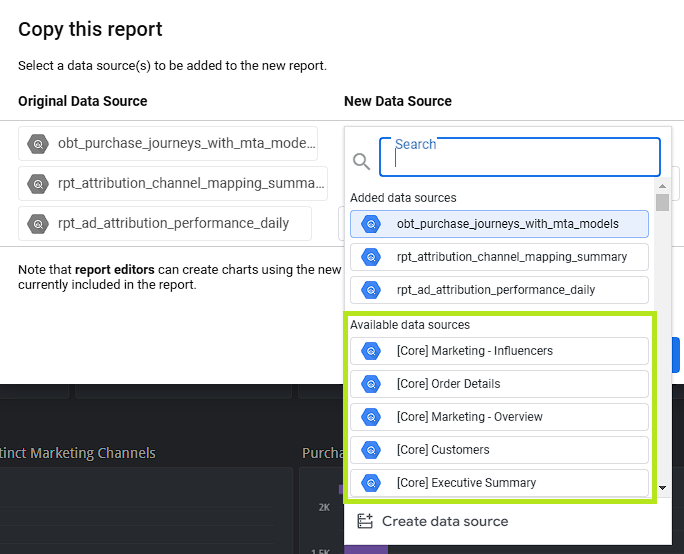 If you do not find matching data sources from your warehouse, you will need to create them using the **Create data source** button. Proceed to **Step 3** for instructions on how to do so.
If you do not find matching data sources from your warehouse, you will need to create them using the **Create data source** button.
If you do not need to create data sources, proceed to **Step 4**.
If you do not find matching data sources from your warehouse, you will need to create them using the **Create data source** button. Proceed to **Step 3** for instructions on how to do so.
If you do not find matching data sources from your warehouse, you will need to create them using the **Create data source** button.
If you do not need to create data sources, proceed to **Step 4**.
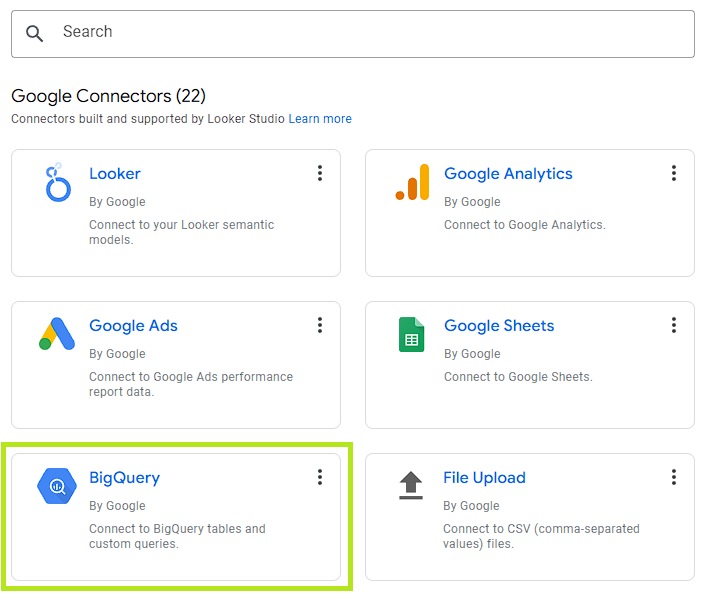
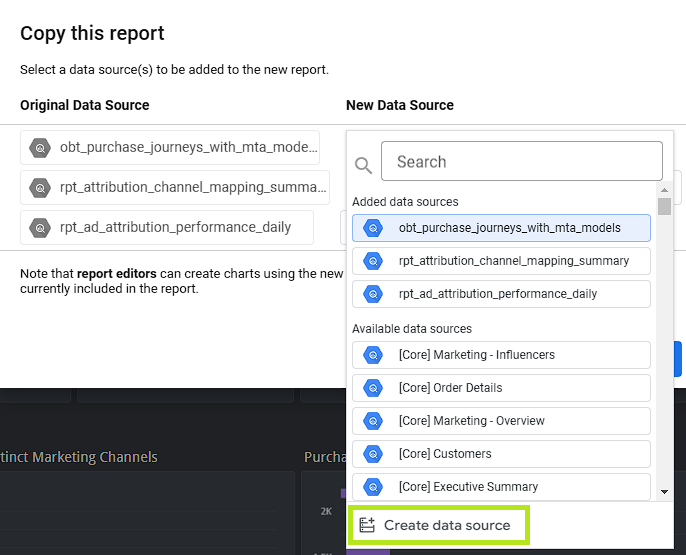 After you’ve begun creating the new data source, select the **BigQuery** connector.
 With the **BigQuery** connector selected, select:
* Project: **SM Managed - Your Company Name**
* Dataset: **sm\_experimental**
* Table: **obt\_purchase\_journeys\_with\_mta\_models** or **rpt\_ad\_attribution\_performance\_daily**
* After you’ve selected the correct Project, Dataset, and Table, click **Connect** and then **Add to Report** on the next screen to add the data source
With the **BigQuery** connector selected, select:
* Project: **SM Managed - Your Company Name**
* Dataset: **sm\_experimental**
* Table: **obt\_purchase\_journeys\_with\_mta\_models** or **rpt\_ad\_attribution\_performance\_daily**
* After you’ve selected the correct Project, Dataset, and Table, click **Connect** and then **Add to Report** on the next screen to add the data source
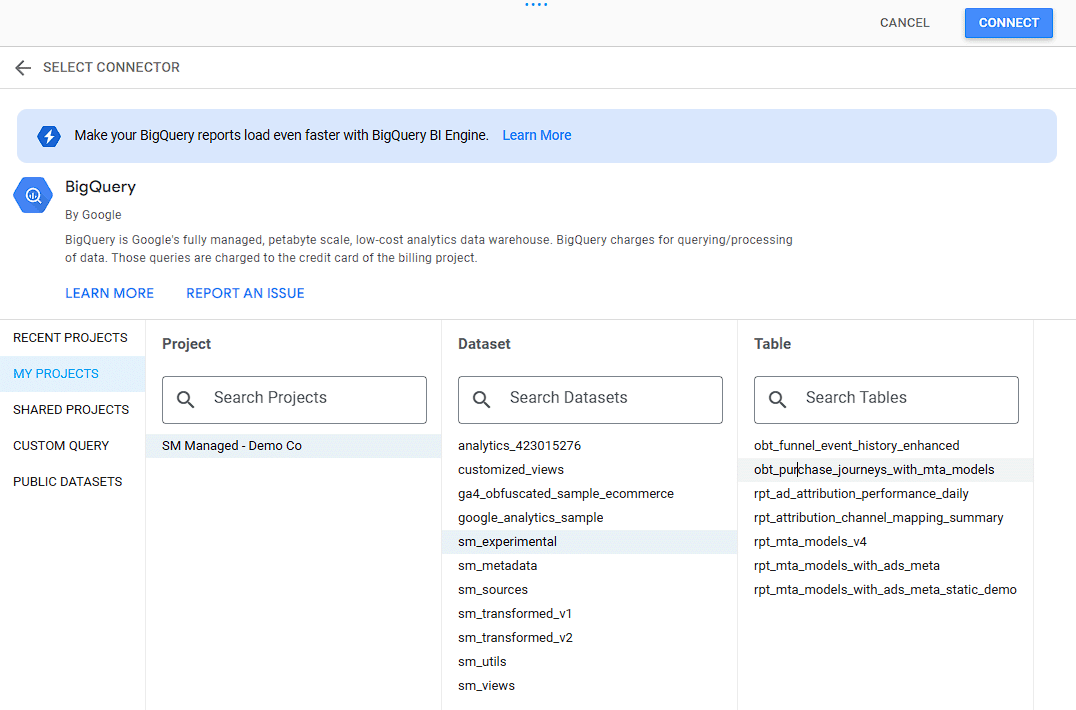 After you’ve selected the correct Project, Dataset, and Table, click **Connect** and then **Add to Report** on the next screen to add the data source.
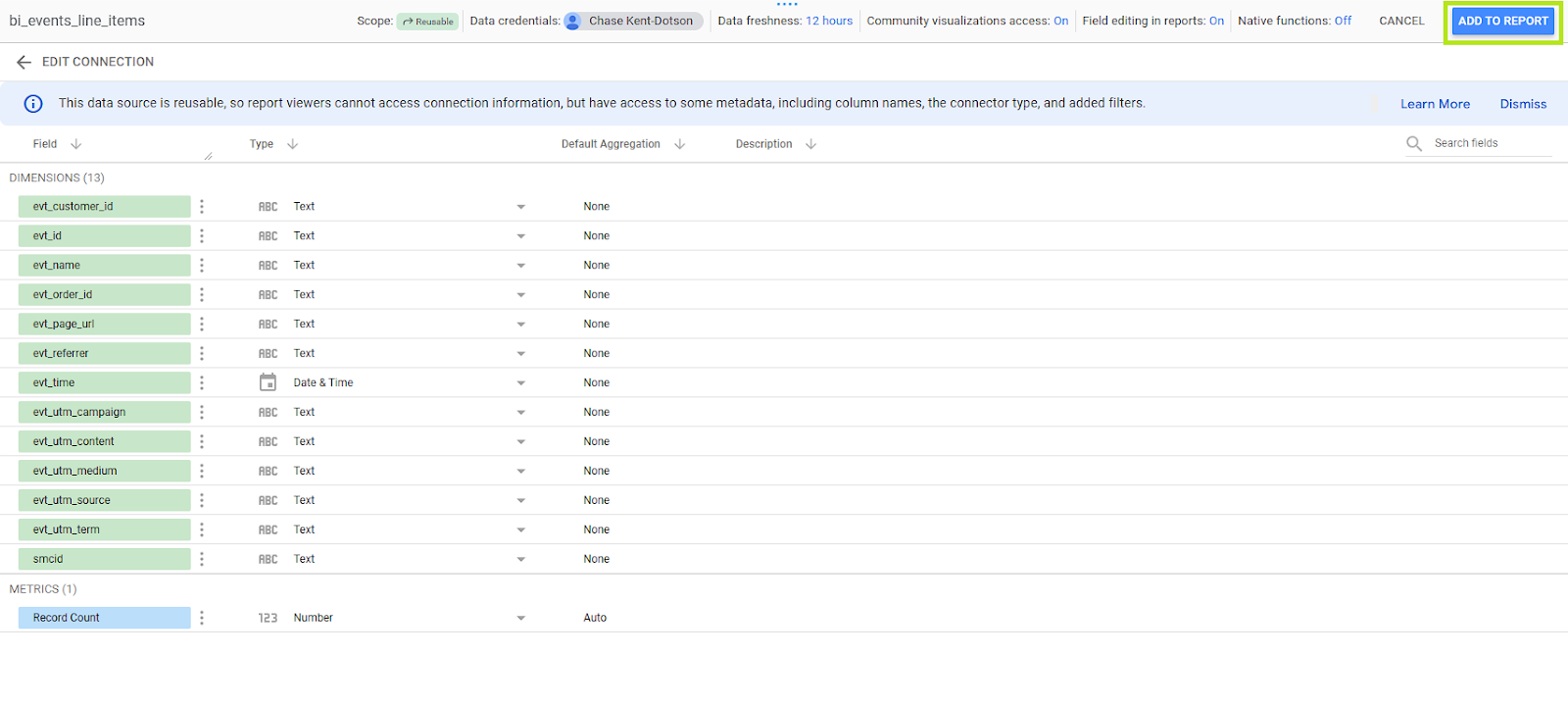 You must repeat this process for each of the three required tables/data sources
After selecting the correct data sources from your managed data warehouse, click Copy Report. You will automatically be brought into edit mode on your new MTA dashboard, which will need a few modifications.
Start by changing the name of the report in the top left corner. Delete *“Copy of”* from the beginning of the name, and replace *“Demo”* with your company name.
You must repeat this process for each of the three required tables/data sources
After selecting the correct data sources from your managed data warehouse, click Copy Report. You will automatically be brought into edit mode on your new MTA dashboard, which will need a few modifications.
Start by changing the name of the report in the top left corner. Delete *“Copy of”* from the beginning of the name, and replace *“Demo”* with your company name.
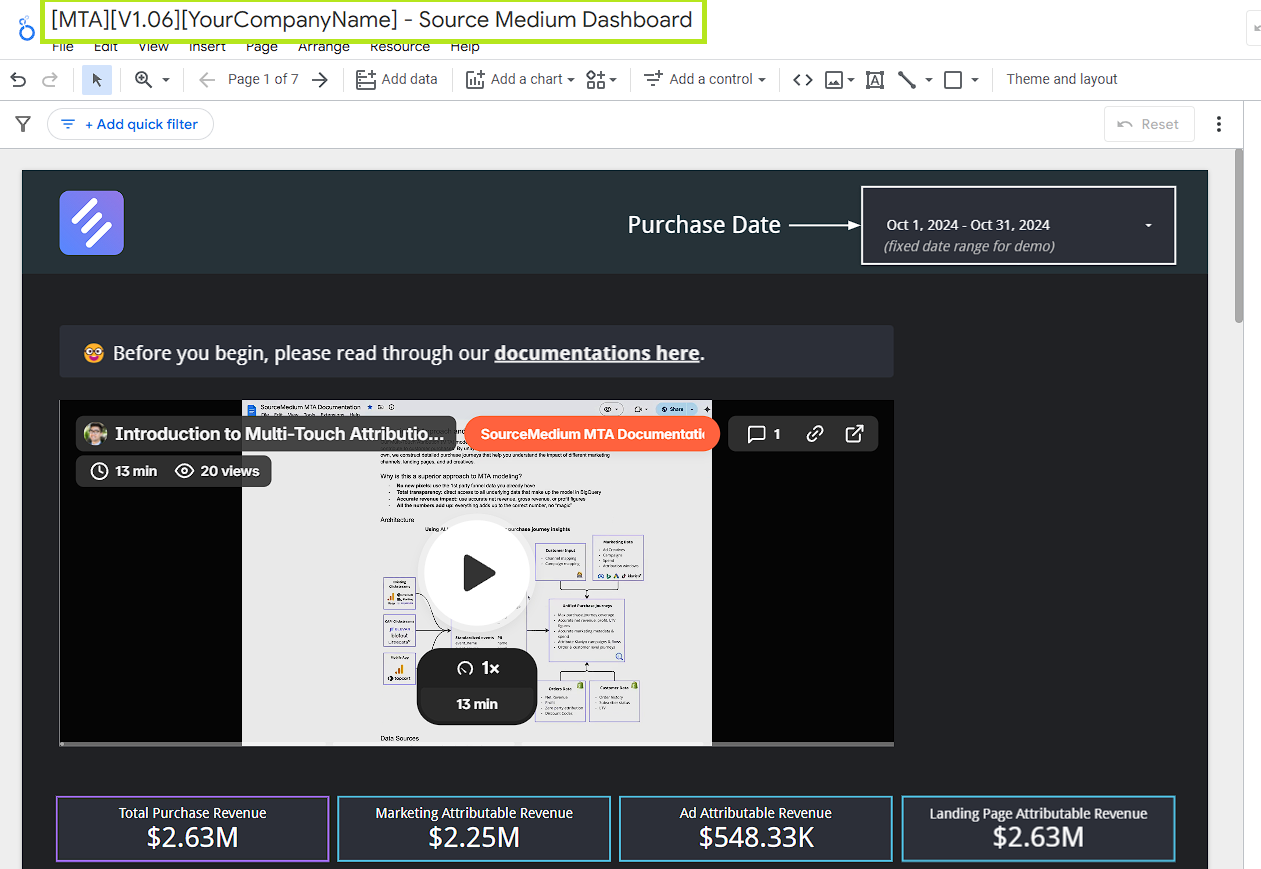 The next thing you'll need to do is to replace the demo date filter and set a new default date range. You can do this by first deleting the large clear rectangle object that covers the date filter. Next, delete the small text box that reads *(fixed date range for demo)*. Lastly, click on the date range filter and set the default date range to whatever period you prefer.
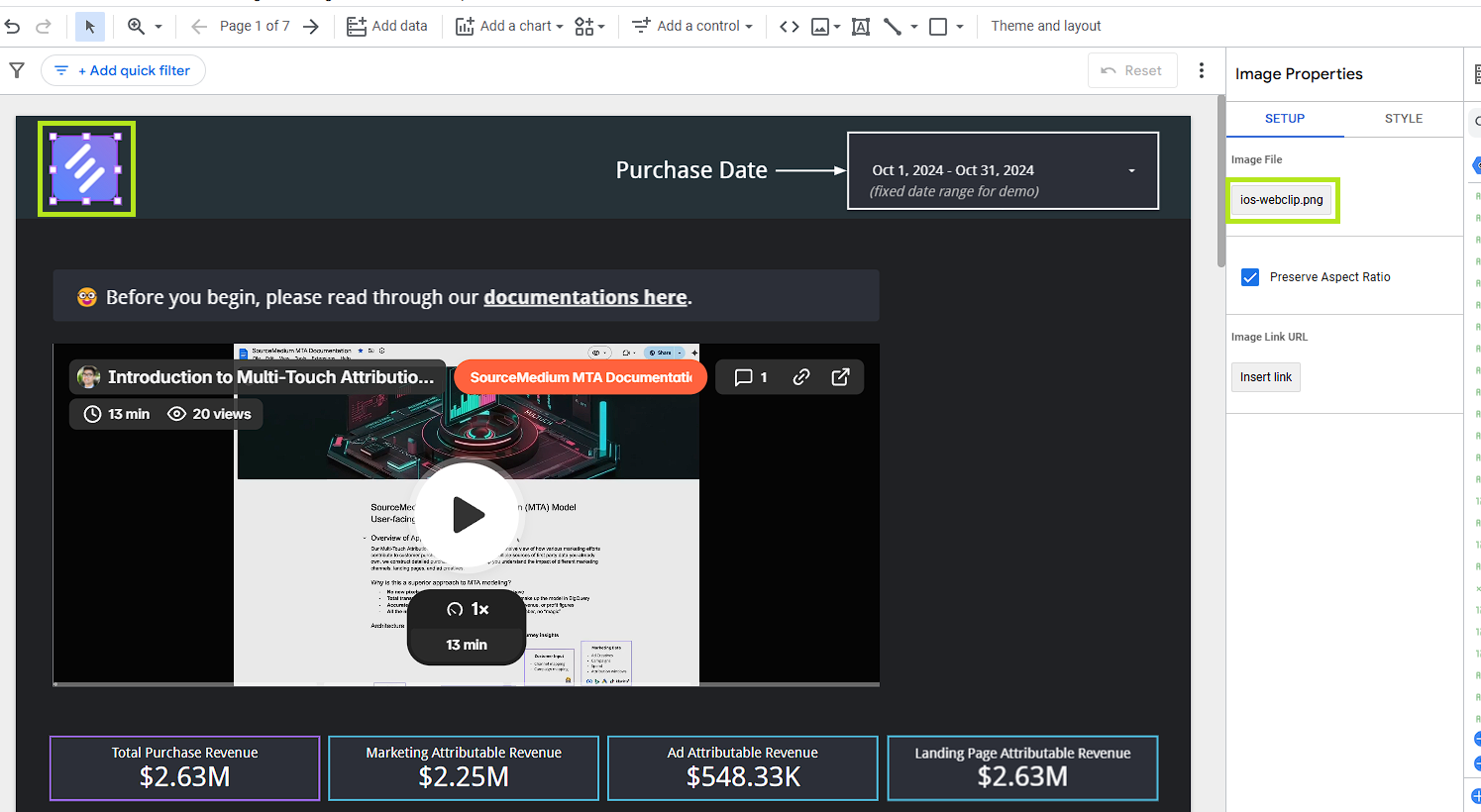
If you wish to do so, you may replace the SourceMedium icon in the top left by clicking on it and then clicking the name of the default file in the **Image Properties** panel on the right. You will be prompted to select a new file from your computer. The icon is linked to all dashboard pages, so you only need to do this once.
The next thing you'll need to do is to replace the demo date filter and set a new default date range. You can do this by first deleting the large clear rectangle object that covers the date filter. Next, delete the small text box that reads *(fixed date range for demo)*. Lastly, click on the date range filter and set the default date range to whatever period you prefer.
If you wish to do so, you may replace the SourceMedium icon in the top left by clicking on it and then clicking the name of the default file in the **Image Properties** panel on the right. You will be prompted to select a new file from your computer. The icon is linked to all dashboard pages, so you only need to do this once.
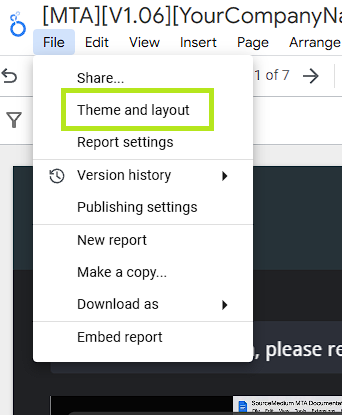
 If you’d like to customize the **Theme and Layout** of the dashboard to your preferences, you may do so by clicking any blank space on the dashboard (not a chart) and selecting **Theme and layout** from the right-click menu, or by selecting *File > Theme and layout* from the main menu at the top of the page.
 You are now ready to use SourceMedium's built-in multi-touch attribution reporting. Happy analyzing!
If you'd like to learn more about the basics of SourceMedium MTA, read our [MTA Overview](/mta/mta-overview)
For answers to common MTA questions check out our [MTA FAQs](/mta/mta-faqs) or use the AI-enabled search bar above to quickly find what you’re looking for.
You are now ready to use SourceMedium's built-in multi-touch attribution reporting. Happy analyzing!
If you'd like to learn more about the basics of SourceMedium MTA, read our [MTA Overview](/mta/mta-overview)
For answers to common MTA questions check out our [MTA FAQs](/mta/mta-faqs) or use the AI-enabled search bar above to quickly find what you’re looking for.